▍ Domain OS Toolbox 1.14.1
Your game gets the best cores
Toolbox is the gaming app Domain OS installs. Turn on Auto, start a game, and it gives the game the best CPU cores and quiets everything else in the background. Close the game and everything goes back to how it was.
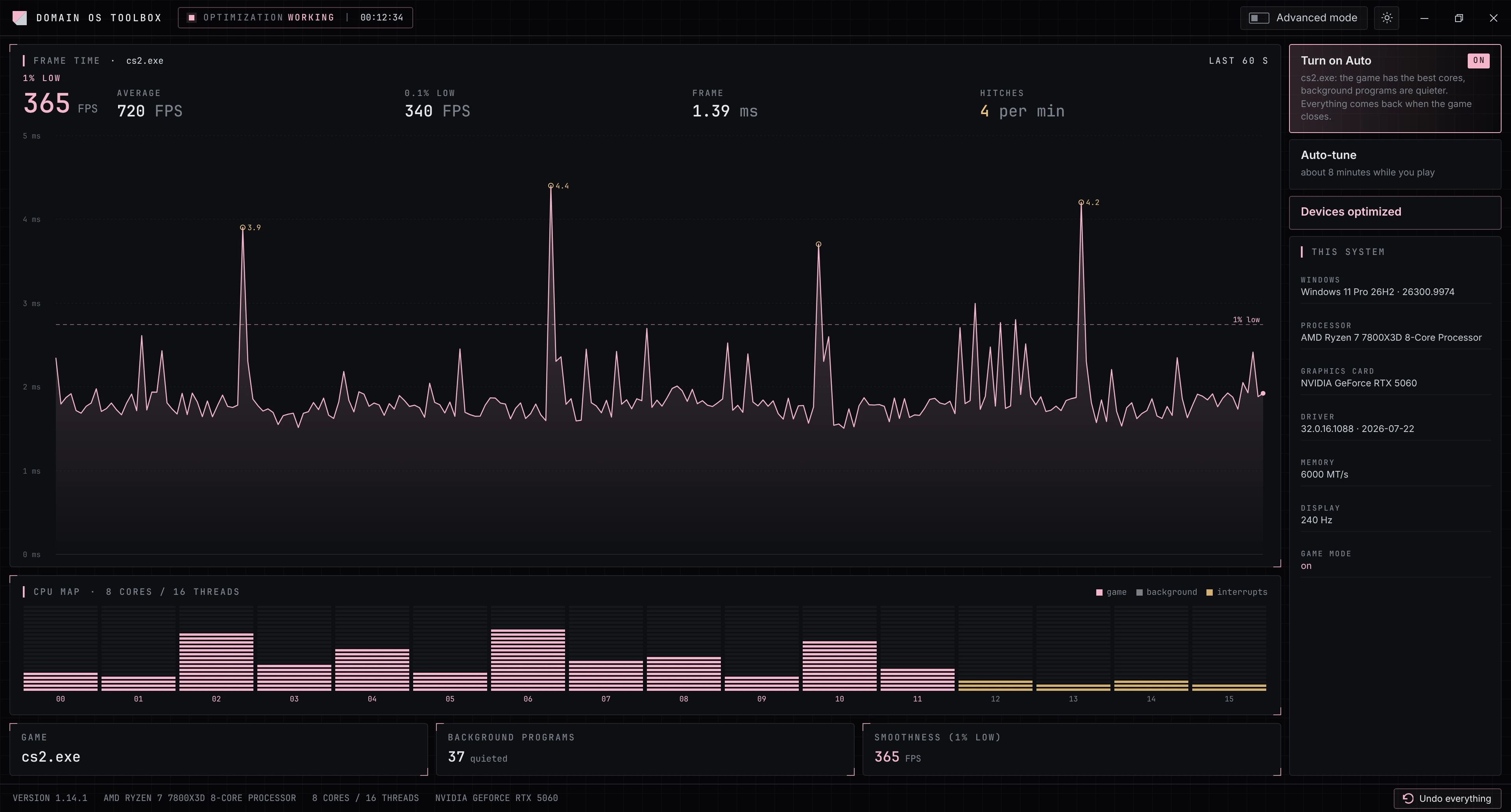
What's new in Toolbox 1.14.1
The main points in short, the full list under the button. The Windows changes of playbook 2.1.1 are on the main page.
- A new interface with a live frame chart, and a new icon
- An "Optimize devices" button: press once, restart the PC
- A safe device layout with automatic undo; OBS and Discord are not quieted
- GPU overclocking behind its own flag; Windows protection stays on
All changes (15)
- New interface: its own title bar, a live frame-time chart, a core load map. The home screen charts can be turned off in settings ("Live charts on the home screen").
- New icon: the same mark as in the title bar, in the window, the taskbar, the tray and the shortcuts.
- "Optimize devices" button on the home screen: press it once (with the game closed) and restart the PC. It shows the state: "restart needed" or "active". "Put back" undoes everything.
- The Devices page shows the layout as a clear table: role, device, now → after restart.
- The device layout is safe now: storage is not touched, MSI only where the device supports it, laptops are not touched. If Windows did not start or crashed after the change, everything is reverted by itself. The old layout of earlier versions is replaced automatically at the first start.
- OBS, Discord, audio and VR software are no longer quieted in Auto mode. Game launchers are left alone too.
- Background processes get low I/O priority, so the game reads from disk first.
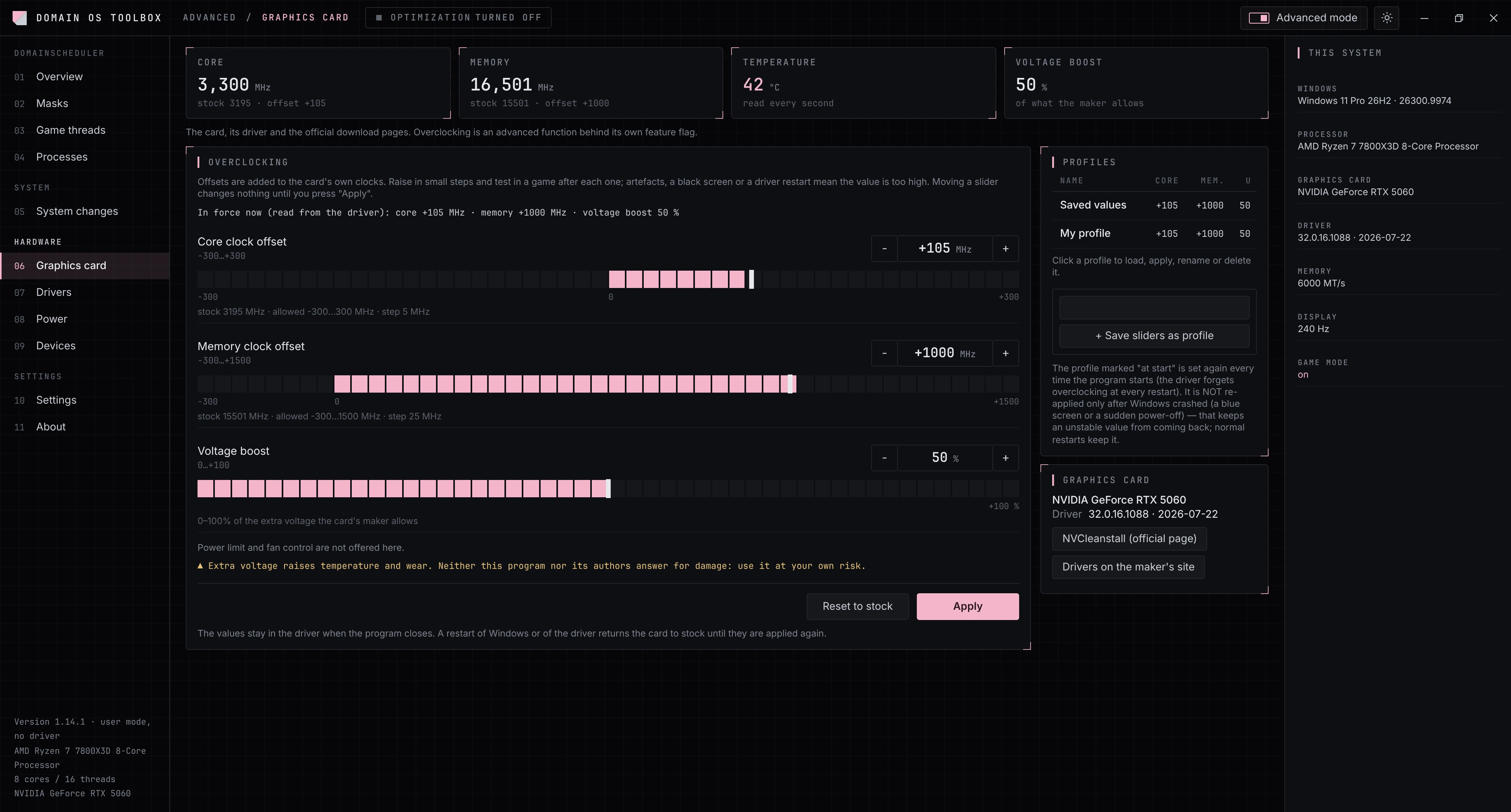
- GPU overclocking (NVIDIA): core, memory and voltage sliders, saved profiles, "Apply at start", "Reset to stock". Guard: if a blue screen or sudden power-off happened after an overclock, the profile is not applied at the next start. An ordinary restart does not reset the overclock.
- Overclocking stays hidden behind a feature flag. How to turn it on. Use it at your own risk.
- Toolbox has no switches that turn off Windows protection. "Protection for speed" was removed: the earlier values come back by themselves at the first start. An extra mouse setting with no effect was removed (RawMouseThrottleDuration).
- The language changes immediately, without leaving settings. Only Russian and English are in the program.
- Fixed: long captions on the home screen and long profile names are no longer cut with "…".
- No journal on screen any more. If something goes wrong, a Windows error window opens at once. During a game the tray shows a notice right away and the window opens once the game is closed. The details go to the log file
%LOCALAPPDATA%\DomainScheduler\log.txt. The "Copy report" button is gone; where the journal was, a "This system" panel shows Windows, processor, graphics card and driver, memory, display and Game Mode. - The Devices page lists every USB controller (e.g. USB 3.10 and USB 3.0). The one with the mouse, keyboard or game controller gets a core of its own.
- The font card was removed from the About page.
What to expect
Honestly, so nobody is disappointed.
Average FPS usually barely changes. The app helps with smoothness: fewer drops and stutters. In numbers, that is your 1% low.
It doesn't help on every PC. If the graphics card is the limit, there may be no difference. That's normal. The app hasn't been tested on laptops yet.
How to use it
Four steps. The app does the rest. The Domain OS Toolbox shortcut is on your desktop, and the app starts with Windows.
- Press "Turn on Auto". The app finds the game by itself, gives it the best cores and quiets background programs. When the game closes, everything goes back.
- Press "Auto-tune" and keep playing as usual for about eight minutes. The app compares settings by frame time.
- Press "Apply" when auto-tune finishes. The new values only take effect when you press it.
- Press "Optimize devices" once with the game closed, and restart the PC. "Put back" undoes it.
Each key device gets a core of its own: the USB controller with the mouse, the graphics card, the network card. Storage is not touched, MSI only where the device supports it, laptops are not touched. If Windows did not start or crashed after the change, everything is reverted by itself. The button shows the state: "restart needed" or "active".
What the app does
While you play. No input needed.
The best cores for the game
The most important parts of the game run on the fastest CPU cores and don't get in each other's way.
A quieter background
Your browser and other background programs get fewer resources and low disk priority while you play, so the game reads from disk first. OBS, Discord, audio and VR software and game launchers are left alone.
Cores free of extra work
Your mouse, graphics card and network also keep the CPU busy. The app notices which cores they occupy and moves the game to free ones.
Auto-tune
Tries different settings while you play, compares smoothness and offers the best one. Nothing changes until you press "Apply".
Quiet timers
Some background apps, like RGB lighting and monitoring tools, wake the CPU thousands of times a second. The app calms that down while you play.
Everything goes back
Before any change, the app remembers how things were and restores them when the game closes. Even after a crash.
GPU overclocking (NVIDIA)
An advanced function. It is hidden behind a feature flag, and you use it at your own risk.
- Turn on "Advanced mode" at the top right.
- Open the "Settings" gear → "Feature flags".
- Turn on "GPU overclocking (clock offsets and voltage boost, NVIDIA)".
- The sliders appear on the "Graphics card" page: core, memory and voltage, profiles, "Apply at start", "Reset to stock".
Crash guard: if a blue screen or sudden power-off happened after an overclock, the profile is not applied at the next start. An ordinary restart does not reset the overclock.
Wrong values make the card unstable, and extra voltage shortens its life.
For advanced users
The "Advanced mode" switch at the top right.
Everything else lives there: the processor map, core masks, threads and processes, device interrupts, power and graphics card. Regular users don't need it.
Toolbox has no switches that turn off Windows protection. So games with anti-cheat work as usual.
Safety
The app works like any normal program.
No drivers
Only standard Windows features, no drivers of its own.
Stays out of the game
Injects nothing into the game and doesn't touch its memory.
Open source
The source of DomainScheduler, the core of the app, is on GitHub.
Download
If you install the Domain OS playbook, you don't need this separately: it installs Toolbox and puts a shortcut on the desktop.
- file
- DomainOS-Toolbox-1.14.1.exe · 71.1 MB
- md5
- e967267985b999f0f979c88b9debeb06
- check
- Get-FileHash -Algorithm MD5 .\DomainOS-Toolbox-1.14.1.exe
- system
- Windows 10 and 11, 64-bit
- install
- not needed, run as administrator